Disclosure: This article contains affiliate links. If you purchase through these links, I may earn a commission at no extra cost to you.
- 1 Quick Overview
- 2 Table of Contents
- 3 1. Notion’s Core Features
- 4 2. User Experience and Interface
- 5 3. Pricing Plans and Comparison
- 6 4. Pros and Cons Compared to Competitors
- 7 5. Conclusion: Why Notion is a Game-Changer
-
8
6. Frequently Asked Questions (FAQ)
- 8.1 Is Notion secure?
- 8.2 Can Notion replace Trello, Google Docs, and Evernote?
- 8.3 Is Notion free to use?
- 8.4 Does Notion work offline?
- 8.5 Does Notion offer mobile support?
- 8.6 Can I use Notion for business purposes?
- 8.7 How does Notion AI work, and is it worth it?
- 8.8 Are there templates available in Notion?
- 8.9 Is there a steep learning curve?
- 8.10 Can I integrate Notion with other tools?
Quick Overview
In a world overflowing with productivity apps, Notion is a beautifully designed, all-in-one workspace that combines note-taking, project management, team collaboration, and database organization. Whether you are an individual planning your week or a startup managing complex workflows, Notion empowers users with the tools to think, write, and plan like never before. Its elegant interface and powerful customization options make it an instant favorite for productivity lovers.
This review explores everything Notion has to offer in 2025. From its seamless integration capabilities to the growing community templates and AI-powered assistance, we will walk through all the features that make Notion a top choice among students, freelancers, entrepreneurs, and corporate teams. The platform’s adaptability to any workflow is what makes it truly revolutionary.
If you are searching for an intuitive productivity suite that is sleek, flexible, and fun to use. Notion might be your perfect digital companion. Let’s unpack why this tool is redefining productivity in the modern age.
Table of Contents
- Notion’s Core Features
- Note-Taking and Documentation
- Project and Task Management
- Knowledge Management with Wikis
- Database Functionality
- Calendar Integration
- AI Integration
- User Experience and Interface
- Pricing Plans and Comparison
- Notion’s Pricing Structure
- Competitor Pricing Comparison
- Pros and Cons Compared to Competitors
- Conclusion: Why Notion is a Game-Changer
- Frequently Asked Questions (FAQ)
1. Notion’s Core Features
Note-Taking and Documentation
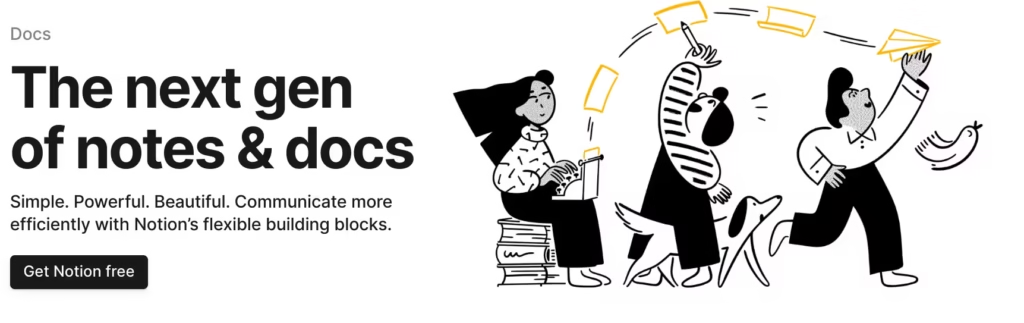
Notion’s note-taking capabilities go far beyond traditional text editors, offering an immersive, block-based editing experience that allows for rich content creation and effortless organization. Each piece of content is treated as a block—whether it’s a paragraph of text, a checklist, an image, a table, or even embedded media—and these blocks can be easily rearranged using simple drag-and-drop functionality.
One of the standout features is the ability to nest pages within pages, which turns Notion into a hierarchical knowledge management system. You can start with a high-level topic and build out layers of subpages, all accessible within a single streamlined structure. This is perfect for creating class notes, team documentation, personal journals, or research projects.
Notion also supports a variety of formatting styles including headings, quotes, bullet lists, toggle lists, and callouts, giving users full control over the aesthetic and structure of their notes. This makes it especially useful for writers, students, and professionals who want their documents to be both functional and visually appealing.
Real-time collaboration is another major plus. Multiple users can edit the same document simultaneously, leave comments on specific blocks, and tag teammates for feedback or review. The version history feature ensures that previous edits can be restored anytime, giving teams peace of mind when working together.
In addition to traditional note-taking, Notion supports embedding external content like videos, PDFs, Google Maps, Figma files, and Tweets, enabling users to centralize all relevant information in one place. This multimedia flexibility transforms Notion from a basic notepad into a powerful content hub.
Finally, the template gallery offers a wide range of pre-designed note-taking systems—from Cornell note layouts to meeting notes and SOP (Standard Operating Procedures)—which can be customized to fit your specific needs. Whether you are jotting down a quick idea or building out a comprehensive digital library, Notion makes documentation easy, scalable, and enjoyable.
Project and Task Management

Notion excels in project and task management by offering a unique combination of flexibility, structure, and visual clarity. Whether you are overseeing a simple to-do list or managing a complex multi-phase project with a team, Notion gives you the tools to build a workflow that works exactly how you want it to.
You can choose from various views—Kanban boards, calendars, timelines, and simple lists—to visualize tasks in the format that best fits your project. This flexibility allows users to seamlessly toggle between different perspectives, such as a bird’s eye view of a monthly roadmap and a detailed daily task list.
Each task is more than just a checklist item; it’s a full-featured Notion page. This means you can include detailed descriptions, sub-tasks, attachments, embedded documents, comments, and even assign properties such as status, due dates, priority levels, and responsible team members. You can also use filters, tags, and relational properties to connect tasks with databases like contacts, projects, or sprints.
Notion’s templates make it easy to get started. Whether you’re launching a product, planning a marketing campaign, or managing client projects, there are pre-built project management templates that you can tailor to your needs. Teams benefit from shared views, team spaces, and the ability to assign and monitor tasks collaboratively, reducing the need for external task management apps.
Automation is another strength. While Notion doesn’t yet have native automation rules, it integrates beautifully with tools like Zapier, Make, and Notion’s own API—allowing you to automate task creation, update statuses based on external triggers, and streamline repetitive actions.
With real-time collaboration, flexible layouts, and the ability to centralize every project element into one space, Notion’s project and task management tools redefine how modern teams and individuals get work done.
Knowledge Management with Wikis
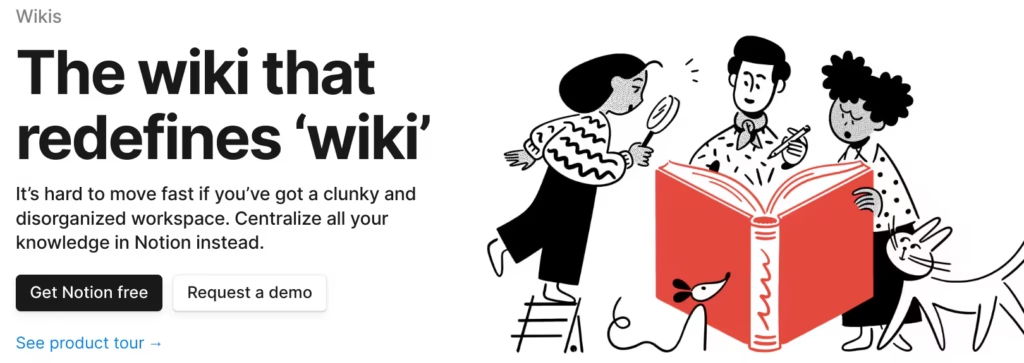
Creating a knowledge base in Notion is straightforward yet immensely powerful, making it one of the best platforms for building both personal and team wikis. Its page-based structure allows users to create a living, breathing knowledge ecosystem that evolves with their needs over time.
With the ability to nest pages within other pages and link across documents, you can build structured content hierarchies that mimic the layout of traditional websites. This is ideal for internal company wikis, onboarding manuals, training resources, style guides, team handbooks, and much more.
Notion’s linking feature lets you create contextual relationships between different content pieces. For example, a project documentation page can link directly to relevant meeting notes, task databases, or team bios. Toggle lists and collapsible headings make long pages more digestible, helping readers navigate large volumes of content effortlessly.
Tags, properties, and template buttons can also be added to wiki pages, allowing for categorization, version control, and even dynamic content generation. Teams can establish consistent templates for documentation, ensuring every page follows a unified structure.
The real-time collaboration features of Notion turn a wiki into a dynamic workspace rather than a static archive. Team members can comment, suggest edits, and contribute updates simultaneously, keeping the knowledge base fresh and relevant. Page history also enables you to review changes and revert when needed.
Moreover, Notion’s powerful search capabilities mean you can find specific terms, blocks, or entire pages in seconds, even in a large wiki spanning hundreds of documents. Combined with the ability to restrict permissions per page or workspace, you can ensure that the right information is shared with the right people—securely and efficiently.
In essence, Notion takes the concept of a traditional wiki and elevates it into a flexible, collaborative, and beautifully designed knowledge management system suitable for individuals, teams, and enterprises alike.
Database Functionality
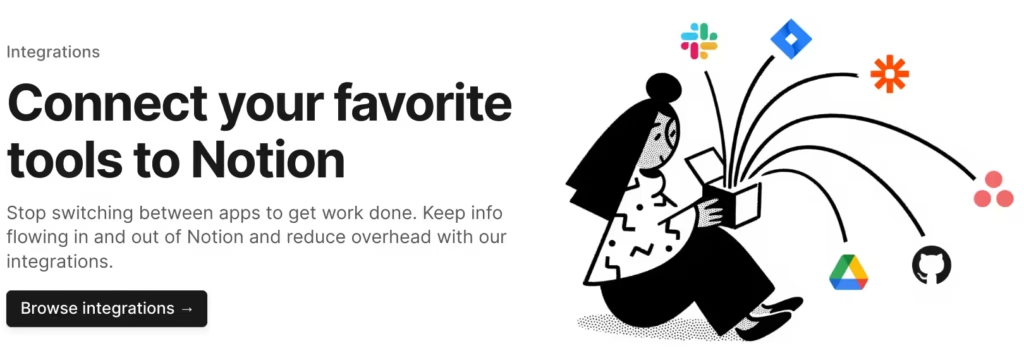
Databases in Notion are incredibly powerful and serve as the foundation for building customized systems tailored to virtually any workflow. Unlike traditional spreadsheets or static documents, Notion databases are interactive, highly customizable, and deeply integrated with every part of your workspace.
You can create databases in five different views—Table, Board, List, Gallery, and Calendar—each suited to different types of data. For instance, use Table view for CRM tracking, Board view for Kanban-style project management, Gallery view for visual assets like design portfolios, and Calendar view for planning content or events.
Each database item is a full Notion page, allowing you to embed rich content inside individual records. This is particularly useful for managing complex projects, writing briefs, or attaching meeting notes to tasks. You can also add multiple properties to each item—such as text fields, checkboxes, dates, tags, numbers, formulas, and relations to other databases—providing endless customization.
Relational databases are a standout feature. You can link multiple databases together to create interconnected systems. For example, a content calendar can be linked to an editorial database, and tasks can be tied to clients or team members. Rollup properties then allow you to aggregate information across these relationships, such as counting the number of tasks assigned to each client or displaying the status of all articles tied to a single campaign.
Filtering, grouping, and sorting options allow you to surface only the most relevant data at any given time. Combined with advanced search functionality, this ensures you can always access the right information, no matter how large your workspace becomes.
Notion also offers a growing library of pre-built database templates from product roadmaps to goal trackers—that help users get started quickly. For power users, integrating Notion databases with external tools via the API opens up automation possibilities that rival enterprise-level software solutions.
In essence, Notion databases aren’t just a feature—they’re a fully-fledged framework for building systems as simple or as complex as you need.
Calendar Integration
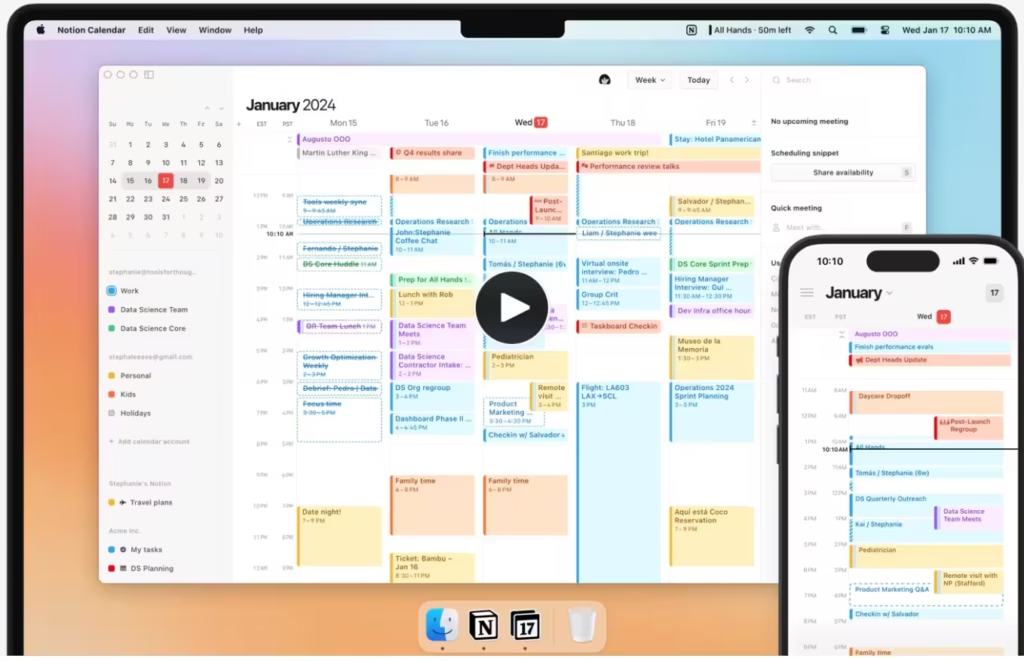
Notion’s calendar integration is much more than just a date display—it’s a robust planning and time management tool designed to streamline your scheduling process. It provides users with a visual and interactive layout that supports day-to-day task tracking, long-term project planning, and everything in between.
One of its most powerful features is the ability to link calendar events directly to pages and databases. For example, if you’re using a content calendar, each calendar item can open into a full page containing article briefs, deadlines, contributor checklists, and editorial status updates. This deep linking makes project planning incredibly dynamic and contextual.
Users can switch between different views (calendar, list, board, or timeline), enabling them to manage information in a format that best suits their workflow. You can also add custom properties to calendar items—such as tags, priorities, or assigned team members—which makes it easy to filter, sort, and organize your schedule.
Recurring events, reminders, and due dates are supported via third-party integrations like Zapier or Make (Integromat), as well as through Notion’s API and tools like Cron or Google Calendar sync. While native two-way syncing with external calendars is still a work in progress, the existing ecosystem offers excellent flexibility for automation and integration.
For teams, the calendar becomes a shared planning space where everyone can track ongoing deliverables and deadlines. For individuals, it serves as an efficient time-blocking and task-management tool. Either way, Notion’s calendar functionality brings time management and productivity under one beautifully customizable interface.
It integrates well with Google Calendar and other third-party tools using Notion’s API and third-party connectors like Zapier.
AI Integration

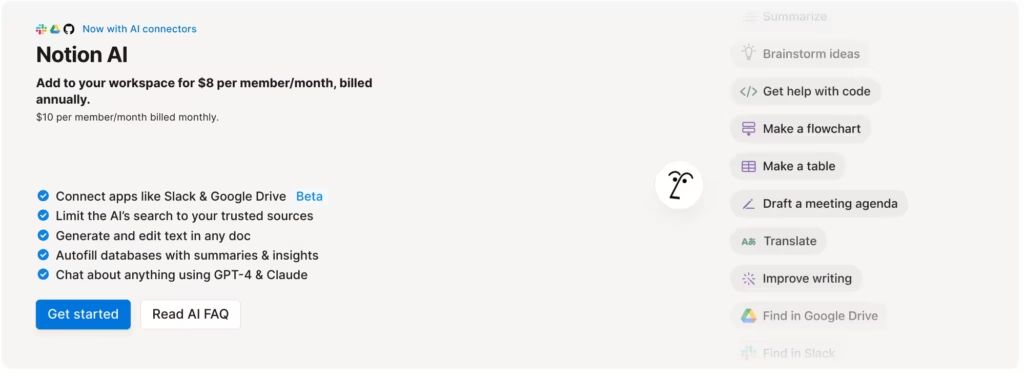
Notion AI is the latest and perhaps most revolutionary enhancement to the platform. Built directly into the app, this intelligent assistant can help you work faster, smarter, and more creatively. It goes beyond just text generation—it understands context from your workspace and offers intelligent suggestions that feel intuitive.
Whether you’re drafting blog posts, summarizing a lengthy report, brainstorming new content ideas, or turning meeting notes into structured action items, Notion AI is always ready to help. You can prompt it to complete sentences, translate text, fix grammar, simplify complex language, or generate entire documents from scratch.
One of the most powerful use cases is how it integrates with Notion databases. For example, you can instruct the AI to summarize key takeaways from research documents or auto-fill content fields in a content calendar. This can dramatically reduce repetitive work and streamline your creative and organizational workflows.
Best of all, Notion AI works seamlessly within the same interface you’re used to no extra apps or plugins required. It’s designed to augment not replace your productivity, giving you a reliable digital assistant that adapts to your work habits and goals.
Whether you’re a content creator, knowledge worker, student, or project manager, the AI capabilities elevate Notion from a robust productivity tool to a truly intelligent platform.
2. User Experience and Interface

Notion’s user interface is one of its most appealing strengths—clean, modern, and designed to fade into the background so you can focus entirely on your content. At a glance, the workspace is minimalist, but beneath the surface, it holds powerful customization options that cater to both beginners and power users.
From the moment you sign up, Notion guides you with tooltips, tutorials, and templates to help you set up your workspace. The sidebar offers a nested page structure that mimics a digital filing cabinet, giving users the flexibility to organize projects, tasks, or personal content in a way that mirrors their mental model. It’s intuitive and scalable.
Customization is at the core of Notion’s experience. You can change page icons, cover images, and background colors, which helps make your workspace more personal and easier to navigate. The drag-and-drop system allows for effortless rearranging of blocks, while the slash command (“/”) gives you quick access to every block type and formatting tool.
One of Notion’s key features for efficiency is its keyboard shortcut support and markdown compatibility. Users who prefer speed and minimal mouse use will find Notion delightful for daily operations. Additionally, the app includes built-in support for light and dark modes, which not only look great but help reduce eye strain during long work sessions.
Across all devices—desktop, browser, tablet, or mobile—Notion delivers a consistent experience. The mobile app is streamlined for on-the-go use, allowing quick edits, check-ins, and task updates, though it’s slightly more limited than the desktop version. Syncing is smooth, and offline support ensures you’re never disconnected from your work.
The real magic of Notion’s interface lies in its balance: it feels simple when you need it to be and powerful when you’re ready to build complex systems. Whether you’re managing a to-do list, crafting a knowledge hub, or running a team project, the interface adapts gracefully to your workflow.
The mobile and desktop apps are both smooth and reliable, with offline support that syncs once you’re back online. Dark mode, keyboard shortcuts, and markdown support are just the icing on the cake.
3. Pricing Plans and Comparison
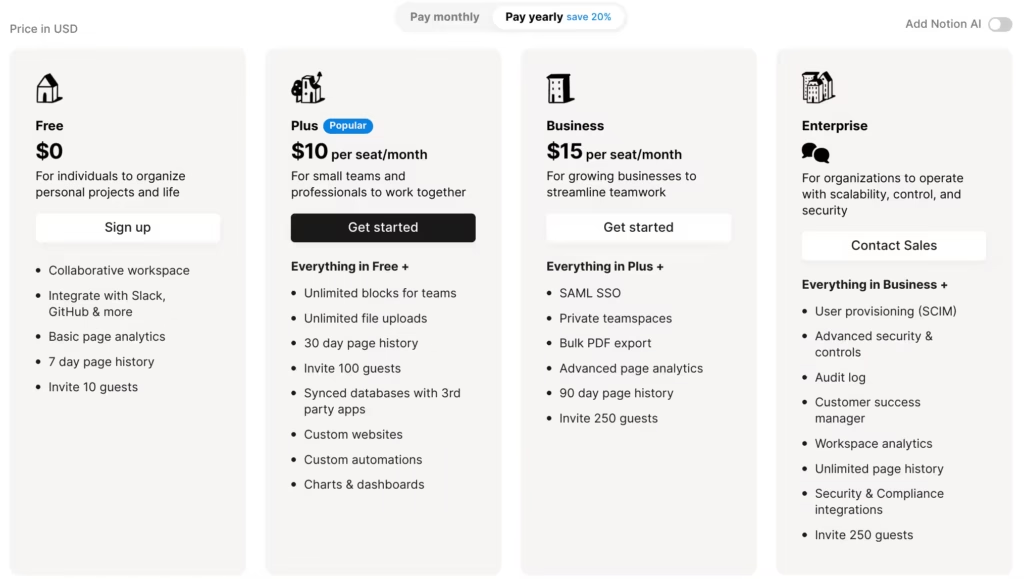
Notion’s Pricing Structure
Plan Price Features
Free $0 Unlimited pages & blocks, basic sharing, limited AI usage
Plus $10/user/month Unlimited uploads, 30-day history, priority support
Business $15/user/month Advanced permissions, 90-day history, private team spaces
Enterprise Custom Advanced security, audit logs, dedicated success manager
Competitor Pricing Comparison
Tools Free Plan Premium Cost Key Limitation
Notion Yes $10–$15/user/mo Slight learning curve
Trello Yes $10/user/mo Limited customization
Evernote Yes $7.99/mo No database views
ClickUp Yes $12/user/mo Overwhelming interface
Asana Yes $10.99/user/mo Less flexible structure
4. Pros and Cons Compared to Competitors
Pros
- Extremely customizable workspace
- Combines multiple tools into one
- Strong community and template ecosystem
- Excellent collaboration features
- AI integration adds massive value
- Attractive and intuitive UI
Cons
- Can be overwhelming for new users
- Mobile experience not as rich as desktop
- Some advanced features require a learning curve
5. Conclusion: Why Notion is a Game-Changer

Notion is more than just a productivity app—it’s a complete ecosystem for thinking, organizing, and executing. Unlike other tools that force you into pre-defined workflows, Notion empowers you to design your own systems, whether you’re managing personal goals, leading a team, or building a company knowledge base. It combines the flexibility of a whiteboard with the structure of a database, all wrapped in a sleek, distraction-free interface.
From students and freelancers to startups and enterprise teams, Notion adapts to every context. Its modular nature means it grows with your needs. Start simple—with a daily to-do list or a class schedule. Then scale up to project dashboards, internal wikis, and AI-assisted research hubs. Every feature feels connected and purposeful, helping you work smarter, not harder.
What truly sets Notion apart is how it makes the organization feel creative. It doesn’t just manage your tasks—it inspires you to build better habits, systems, and workflows. It’s rare to find a tool that’s both powerful and joyful to use, but Notion hits that balance perfectly.
If you’re tired of juggling apps or wish your digital workspace felt more like an extension of your brain, it’s time to try Notion. It’s not just a game-changer—it’s a work-life transformer.
6. Frequently Asked Questions (FAQ)
Is Notion secure?
Yes. Notion uses TLS encryption in transit and AES-256 encryption at rest to keep your data safe. For Business and Enterprise users, additional features like SAML SSO, audit logs, and granular permission controls are available to meet advanced security requirements.
Can Notion replace Trello, Google Docs, and Evernote?
Absolutely. Notion integrates features from these platforms—Kanban boards like Trello, document editing like Google Docs, and note organization like Evernote—into a single cohesive system. Plus, it adds database functionality and wikis, which set it apart.
Is Notion free to use?
Yes. The Free plan includes unlimited pages and blocks, basic collaboration, and a limited trial of Notion AI. For more advanced features such as unlimited file uploads, page history, and team tools, the paid plans offer excellent value.
Does Notion work offline?
Yes. The desktop and mobile apps allow offline access and editing. Once you’re reconnected to the internet, everything syncs automatically. It’s a great option for travelers and remote workers.
Does Notion offer mobile support?
Yes. There are native apps for iOS and Android, which allow you to access, edit, and collaborate on your content on the go. While not as robust as the desktop version, the mobile app is excellent for quick edits and check-ins.
Can I use Notion for business purposes?
Definitely. Notion is used by businesses of all sizes to manage internal wikis, CRM systems, project workflows, and knowledge bases. The Business and Enterprise tiers offer enhanced permissions, security, and administrative features.
How does Notion AI work, and is it worth it?
Notion AI is a premium add-on that helps you write, summarize, translate, and brainstorm content. It can analyze context from your workspace to provide smart suggestions and streamline your work. For professionals and teams, it’s a highly valuable productivity boost.
Are there templates available in Notion?
Yes. Notion offers a vast collection of free and premium templates. Whether you’re managing a product launch, personal goals, class notes, or a team wiki, there’s a template to help you get started fast.
Is there a steep learning curve?
Notion is easy to get started with, but mastering its more advanced features can take time. Fortunately, there are thousands of tutorials, templates, and community guides to help you progress quickly.
Can I integrate Notion with other tools?
Yes. Notion supports native integrations and works with tools like Slack, GitHub, and Google Drive. With platforms like Zapier, Make, and its own public API, you can build powerful automation and connect to hundreds of third-party services.
Ready to try Notion? Visit notion.so and start building your ultimate workspace today!